


 Years in Business
 Microsoft AI Cloud Partner
 Client Retention Rate
Microsoft Excel Shortcuts That Can Save You Time Every Day
Microsoft Excel is one of those applications many businesses use constantly, but most people still rely heavily on the mouse to get things done.
There is nothing wrong with that, of course. But when you spend hours every week entering data, navigating spreadsheets, creating reports or maintaining lists, a few simple keyboard shortcuts can make a noticeable difference.
You do not need to memorize dozens of commands overnight. Start with a handful of shortcuts you use regularly, and before long they become second nature.
Here are some of the most useful Microsoft Excel shortcuts for everyday business users.
Edit and Enter Data Faster
A surprising amount of time in Excel is spent clicking into cells, entering information and moving between fields. These shortcuts can make routine data entry considerably faster.
F2 — Edit the active cell
Instead of double-clicking a cell, press F2 to immediately edit its contents.
Ctrl + Enter — Enter the same value into multiple cells
Select several cells, type the value once and press Ctrl + Enter. Excel fills every selected cell with the same information.
Alt + Enter — Start a new line within a cell
Useful when you need several lines of information inside a single cell without creating another row.
Ctrl + ; — Enter today’s date
A handy shortcut for logs, service records, tracking sheets and other date-based information.
Ctrl + Shift + ; — Enter the current time
Perfect for quickly timestamping activity.
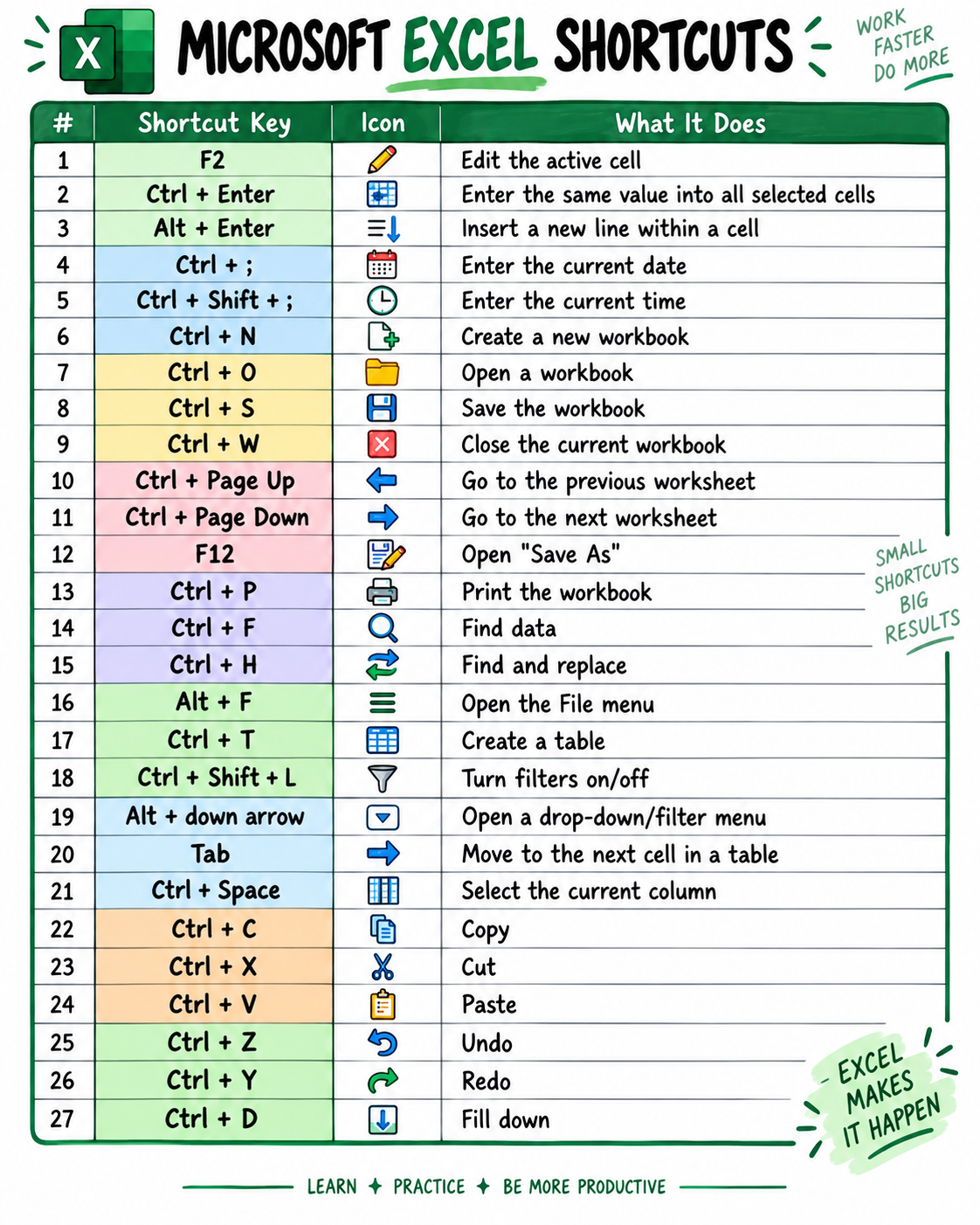
Work With Excel Files Without Reaching for the Mouse
Some of the easiest shortcuts to learn are the ones that work across many Microsoft applications.
Ctrl + N creates a new workbook.
Ctrl + O opens an existing workbook.
Ctrl + S saves your workbook.
Ctrl + W closes the current workbook.
F12 opens the Save As window.
Ctrl + P opens the print options.
These might seem basic, but they are excellent shortcuts to learn first because you can use many of them in Word, Outlook and other Windows applications as well.
Move Between Worksheets Quickly
Large Excel files often contain several worksheets, and constantly reaching for the worksheet tabs can slow you down.
Use Ctrl + Page Up to move to the previous worksheet.
Use Ctrl + Page Down to move to the next worksheet.
If you regularly work with workbooks containing monthly reports, departments, locations or project tabs, these two shortcuts can become particularly useful.
Find Information Without Scrolling
When a worksheet contains hundreds or thousands of rows, manually searching for information can be frustrating.
Ctrl + F — Find
Use it to locate a name, number, product, invoice, customer or other piece of information.
Ctrl + H — Find and Replace
This takes search one step further by allowing you to replace matching information throughout a worksheet or workbook.
Just be careful with Replace All. It is worth double-checking what Excel is about to change before applying replacements across a large spreadsheet.
Make Tables and Filters Easier to Use
Excel tables can make data easier to organize, sort and analyse.
Ctrl + T — Create a table
Select your data and press Ctrl + T to quickly convert the range into an Excel table.
Ctrl + Shift + L — Turn filters on or off
Filters make it easy to narrow a large data set to exactly what you want to see.
Alt + Down Arrow — Open a drop-down or filter menu
This is especially useful when you are already working with your keyboard and want to avoid switching back to the mouse.
Tab — Move to the next cell in a table
For repetitive data entry, using Tab can make moving through fields much faster.
Select, Copy and Move Information Faster
A few familiar shortcuts can make working with data much more efficient.
Ctrl + Space — Select the current column
Ctrl + C — Copy
Ctrl + X — Cut
Ctrl + V — Paste
Most computer users already know copy and paste, but combining those shortcuts with faster ways of selecting data can make them even more useful.
Fix Mistakes Without Losing Momentum
Made a mistake? There is usually no need to manually reverse what you just did.
Ctrl + Z — Undo
Ctrl + Y — Redo
These shortcuts are particularly valuable when formatting spreadsheets or making repetitive changes.
Fill Data Down in Seconds
One shortcut that can save a surprising amount of time is:
Ctrl + D — Fill Down
Select the cell containing the information or formula you want to copy along with the cells below it, then use Ctrl + D.
This can be especially useful when working with formulas across long lists.
You Do Not Need to Learn Them All at Once
The goal is not to become a walking Excel shortcut dictionary.
Pick three or four shortcuts that match the work you already do.
For example, someone who regularly maintains spreadsheets might start with:
- F2 for editing cells
- Ctrl + ; for entering dates
- Ctrl + F for finding information
- Ctrl + Shift + L for filters
- Ctrl + D for filling data down
Once those become automatic, add a few more.
Saving two or three seconds might not sound significant, but multiply those seconds across hundreds of actions, every employee and an entire year. Small improvements in everyday workflows can add up to meaningful productivity gains.
Technology Should Make Work Easier
Productivity is not always about buying new software or introducing another complicated platform. Sometimes it comes from helping people use the technology they already have more effectively.
Microsoft 365 applications such as Excel contain an enormous number of features that many businesses never fully use. A little training, better processes and a few keyboard shortcuts can help employees spend less time clicking through menus and more time getting work done.
Small shortcuts can produce big results.
Note: These shortcuts are primarily for Microsoft Excel on Windows. Some shortcuts may differ on macOS or on keyboards where function keys require the Fn key.